Tips for Setting Healthy Boundaries with Notifications

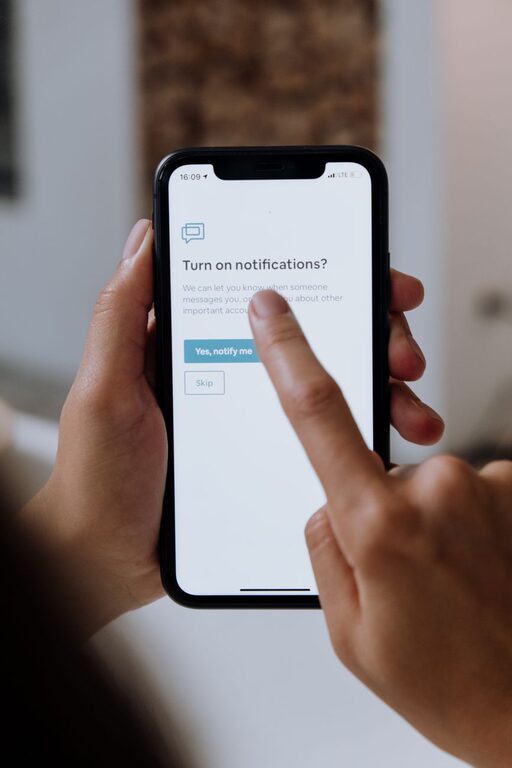
In today’s fast-paced digital world, notifications from our devices can feel overwhelming. From app alerts and emails to social media updates and calendar reminders, constant notifications can interrupt your focus, increase stress, and reduce productivity. Learning to set healthy boundaries with notifications is essential for maintaining balance and improving your overall well-being.
This guide offers practical tips to help you manage notifications effectively and create boundaries that work for you.
Why Setting Boundaries with Notifications Matters
Notifications are intended to keep us informed and connected, but when they become constant distractions, they can negatively impact:
– Concentration: Frequent interruptions reduce your ability to focus deeply on important tasks.
– Stress Levels: Notifications can trigger anxiety, especially when they demand immediate attention.
– Sleep Quality: Screen time and alerts before bedtime can interfere with restful sleep.
– Work-Life Balance: Without boundaries, work-related notifications can encroach on personal time.
By controlling when and how notifications reach you, you regain control of your time, improve focus, and reduce stress.
Tips for Setting Boundaries with Notifications
1. Audit Your Notifications
Start by reviewing all the notifications you receive across your devices and apps.
How to audit:
– Open the notification settings on your phone and computer.
– List which apps send notifications.
– Identify which notifications are essential and which are unnecessary.
Once you understand what’s coming through, you can decide what to keep, modify, or turn off.
2. Prioritize Important Notifications
Not all notifications require immediate attention. Categorize them into:
– Critical: Messages from family, work emergencies, calendar reminders.
– Important but not urgent: Social media updates, news alerts.
– Low priority: Promotional messages, app badges.
Allow only critical notifications to alert you immediately. Set others to deliver in batches or check them at scheduled times.
3. Use “Do Not Disturb” and Focus Modes
Most smartphones and computers have “Do Not Disturb” or focused work modes.
Tips:
– Schedule “Do Not Disturb” during work hours, meetings, or personal time.
– Customize exceptions so only urgent contacts or apps can break through.
– Consider using focus modes (like Focus on iOS or Focus Assist on Windows) that limit notifications based on your activity.
4. Limit Notifications by App
Dive deeper into each app’s settings:
– Disable non-essential push notifications.
– Turn off notification badges or sounds if they are distracting.
– Adjust frequency settings if available (e.g., get daily summaries instead of instant alerts).
5. Set Specific Times to Check Notifications
Instead of responding as soon as a notification arrives, designate specific times during the day for catching up.
Benefits:
– Reduces constant interruptions.
– Allows you to focus on tasks without distraction.
– Helps create a routine for managing communication.
Try checking notifications at set intervals, such as mid-morning, lunch, and late afternoon.
6. Use Notification Summary Features
Some devices offer notification summary features that collect non-urgent notifications and deliver them at chosen times.
This helps prevent a flood of alerts throughout the day and lets you review non-critical notifications when convenient.
7. Communicate Your Boundaries with Others
If you work in a team or live with family members, let them know about your notification boundaries.
– Inform colleagues about your “do not disturb” hours.
– Explain to friends and family when you are unavailable.
– Set expectations about response times.
Clear communication helps others respect your boundaries and reduces pressure to respond immediately.
8. Turn Off Notifications Before Bedtime
To improve sleep quality, avoid screens and notifications at least 30 minutes before going to bed.
Consider:
– Enabling night mode or blue light filters on devices.
– Turning off notifications or using “Do Not Disturb” during night hours.
– Charging your devices outside the bedroom to avoid temptation.
9. Declutter Your Digital Space Regularly
Regularly review your apps and subscriptions to remove those that send unnecessary notifications.
Deleting unused apps or unsubscribing from email lists helps decrease notification overload.
10. Use Third-Party Tools if Needed
There are apps designed to help manage notifications and improve focus.
Examples include:
– Notification managers that filter alerts.
– Time-tracking apps that block distracting notifications.
– Focus apps that promote digital wellbeing.
Research and choose tools that fit your needs.
Conclusion
Setting boundaries with notifications is a simple but powerful way to regain control over your digital life. By auditing and prioritizing alerts, using built-in focus features, scheduling when to check notifications, and communicating your limits, you can enhance your productivity, reduce stress, and maintain a healthier work-life balance.
Start small by tweaking one or two settings today and gradually build a notification system that supports your well-being. Your focus and peace of mind will thank you!